Why host with Villario
Villario charges a simple, tiered commission instead of a flat percentage on every booking — so short bookings on higher‑value properties aren't penalised, and longer stays cost you less than they would elsewhere.
| Stay length | What you would pay |
|---|---|
| 4 nights or fewer | Flat £25 per booking + card‑processing fee |
| 5 nights or more | 5% commission + card‑processing fee |
Commission is calculated on your room rate (after any pricing rules you've set, e.g. seasonal or early‑bird pricing), plus any add‑ons the guest pays (e.g. a cleaning fee). It's never calculated on tax (a pass‑through to the tax authority, not platform revenue) or a refundable damage deposit (also not platform revenue).
The card‑processing fee is deducted from your own payout — itemised separately on your earnings statement for transparency. It is never shown to or charged to your guest, and the guest's total at checkout never changes because of it.
When you're paid. Villario releases your payout 48 hours after the guest's check‑in date (it is held longer only while a payment dispute on that booking is open), and from there it follows your Stripe payout schedule to your bank. If a guest cancels late under your policy, the share your policy lets you keep is paid on the same schedule, with the commission and the card‑processing fee reduced in proportion to what was refunded. A booking's page shows its payout as pending until it is released.
Beyond price, everything you need to run a serious short‑term‑rental business is built in: custom pricing rules, Request‑to‑Book bookings (with optional fast‑track confirmation for short‑notice stays), identity checks on higher-risk booking requests, iCal sync with Airbnb/Booking.com/Vrbo, PMS connections, delegated co‑host access, structured dispute resolution, and automatically generated earnings statements — all reachable from the Property Hosting section of your dashboard once you're set up.
Getting started checklist
Six things to do, in order, before your first booking can come in. Each is covered in its own section below.
- Create your account and complete your host profile.
- Connect a payout account under Payments so you can actually get paid.
- Accept the Terms, Privacy Policy and Host Agreement and confirm your trader/private status.
- List your first property — either build it step by step, or import it from an existing listing.
- Set up room types (or whole‑property pricing) and availability.
- Publish, and keep an eye on your dashboard for your first enquiry.
Your host profile
Your profile is what guests see on every listing you publish, and it controls how booking requests behave. Find it under Property Hosting → Profile.
Public details
Display name, photo, short bio, the languages you speak, and how you'd like guests to reach you (WhatsApp / SMS / Signal availability flags — no contact details are published). Villario also shows your response rate and response time once you have booking history.
Booking behaviour
For properties using Request to Book, set a default response deadline on your profile — 24, 48 or 72 hours, or leave it unset so requests simply wait for you — and what happens automatically if you miss it: the booking either confirms or is denied. You can override that default for an individual property in its Policies step (a different deadline and outcome, or no automatic deadline at all). This protects a guest whose card is authorized while they wait.
Every booking is a Request to Book: Villario authorizes (holds) the guest's card and gives you until the response deadline (24, 48 or 72 hours — your profile default, or the deadline you've set for that property) to accept or decline before the automatic outcome kicks in. Instant Book (confirming automatically the moment a guest pays) isn't offered at the moment. For short‑notice stays you can optionally allow fast‑track bookings in the Policies step: choose how close to check‑in you'll accept them (within 24, 48 or 72 hours) and they're confirmed automatically if you haven't responded after 1 or 2 hours.
Connecting payments
Villario pays hosts out via Stripe Connect. Nothing can be booked on your properties until this is set up — go to Property Hosting → Payments.
| Status | What it means |
|---|---|
| Not started | No payout account exists yet — start onboarding from the Payments page. |
| Pending | Your Stripe account exists but onboarding (identity, bank details) isn't finished. Guests can browse your listings, but bookings can't be paid out until this completes. |
| Active | Payouts are enabled — you're fully onboarded and ready to take bookings. |
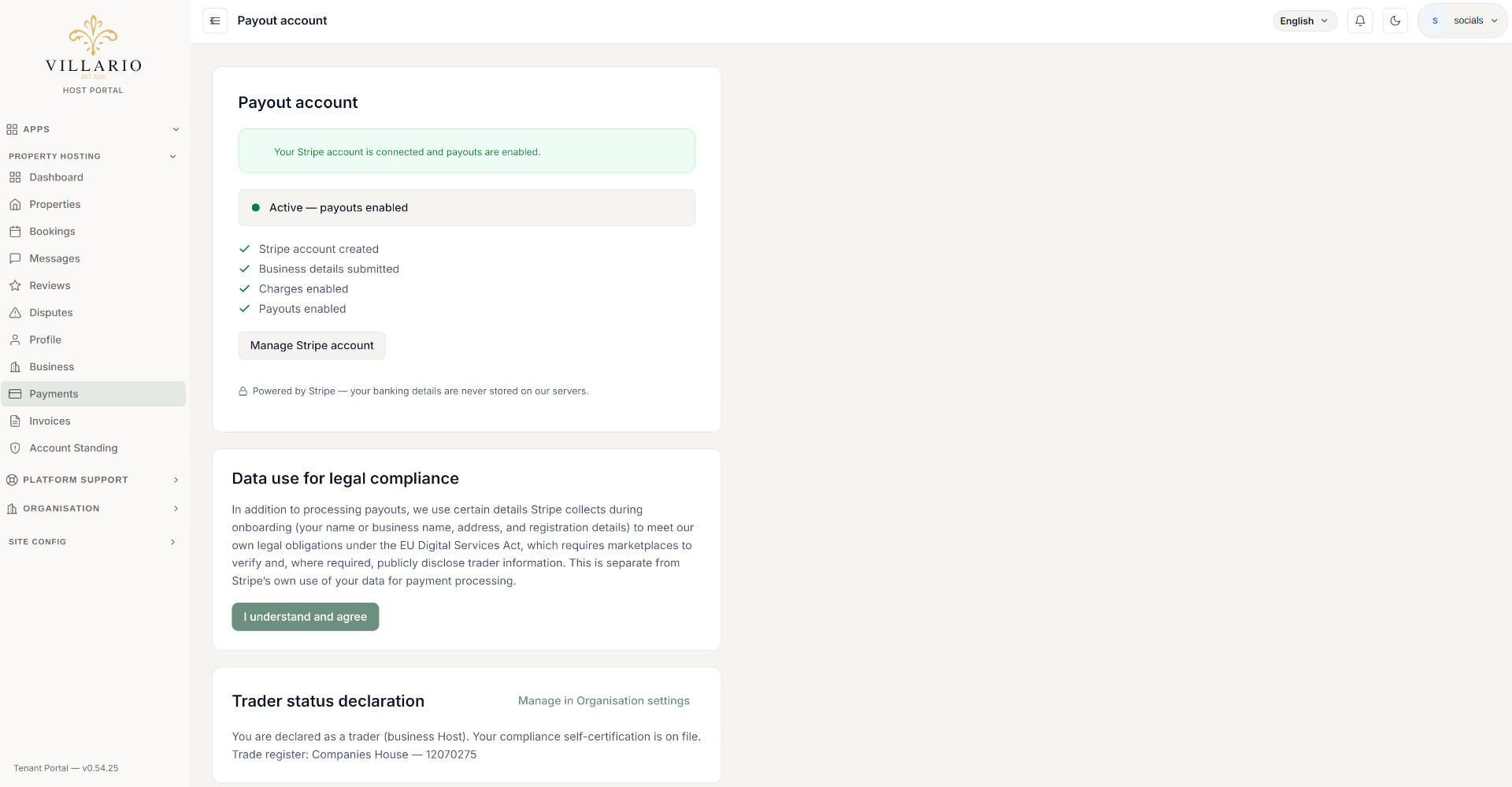
The same Payments page is also where you'll see a read‑only summary of your trader/private declaration (see Legal & compliance) and, where it applies, a short notice about additional use of your Stripe onboarding details for the platform's own EU marketplace‑disclosure obligations — you'll be asked to explicitly acknowledge this once, separately from Stripe's own terms.
Legal & compliance
Villario operates across multiple jurisdictions, so a few pieces of paperwork are built into the flow rather than left to chance. None of this is optional busywork — each piece unlocks something.
The Terms, Privacy Policy and Host Agreement
Before you can publish a listing or accept a booking request you need to have accepted the Terms of Service, the Privacy Policy and the Host Agreement. You accept the Terms and Privacy Policy when you register; if anything is missing, a banner on your Dashboard and Properties pages lists it with a link to each document and records your acceptance with one click. Until then publishing and accepting bookings are paused, but you can still decline requests and keep editing your listings. Requests you've asked to be confirmed or declined automatically are not affected.
Trader / private status & business info
Whether you're hosting as a private individual or as a registered trading business affects what's shown on your listing and what Villario must disclose about you under EU marketplace rules. This is captured once, in your Organisation → Business Info settings (outside the Property Hosting section) — Villario suggests a status based on your Stripe business type or how many properties you list, but you can correct it. The Payments page shows a read‑only summary with a link back to that page if you ever need to update it.
If you're classified as a trading business with an EU property and your registration details are incomplete or go stale, new EU bookings on that property can be paused until it's corrected. You'll get an in‑product notice with a deadline before that ever happens — it's never automatic on day one.
Short‑term rental registration
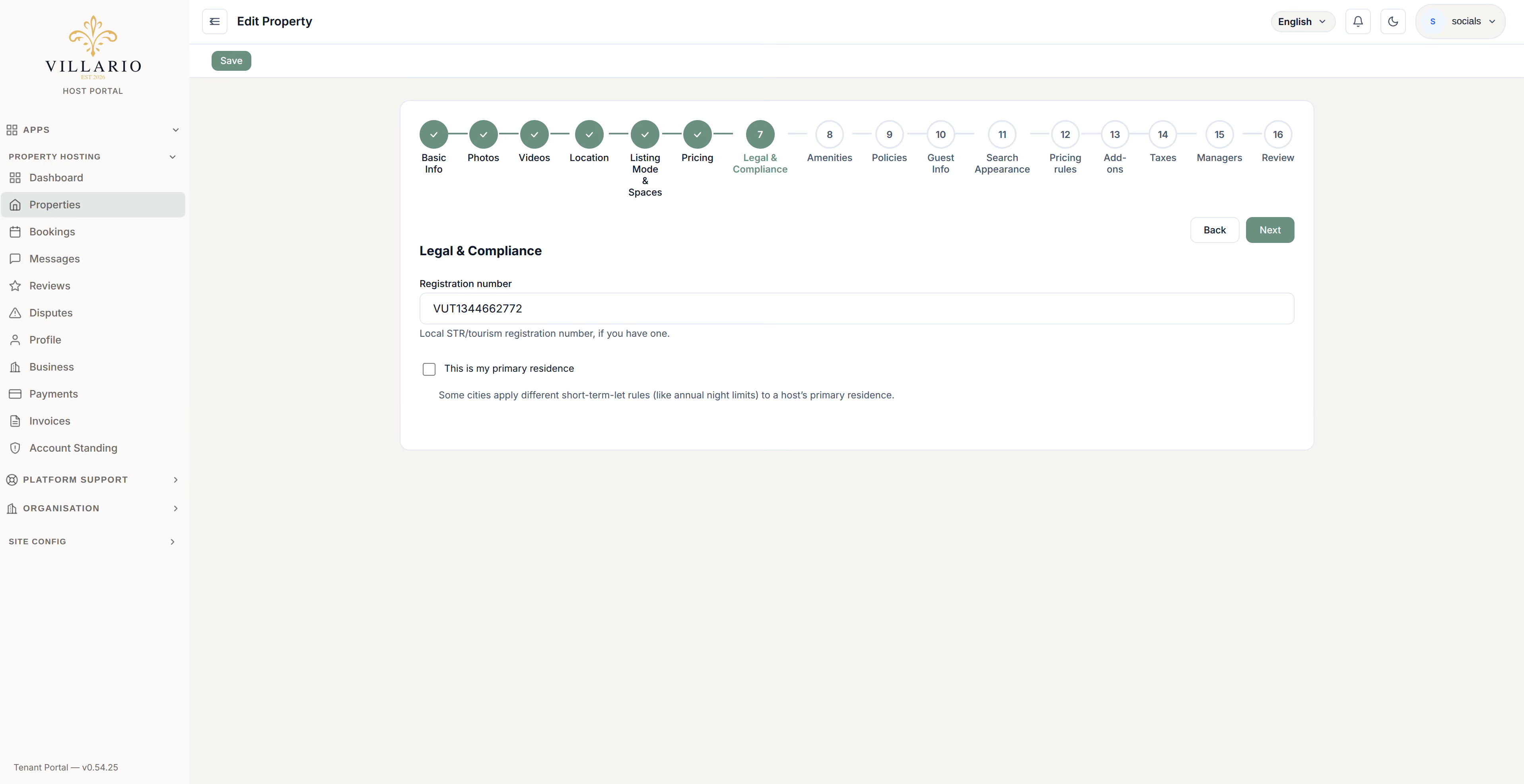
Many countries and cities require a registration or licence number for short‑term rentals. The property wizard's Legal & Compliance step asks for this automatically when your property's country requires it, and shows you exactly which label/format is expected. You can save a draft without it, but you won't be able to publish until it's filled in for a country that requires one.
Guest identity: what Villario does and doesn't do for you
Villario does not collect your guests' ID on your behalf, in any country, and there is no Data Processing Agreement to accept. Separately, Villario may ask a guest to verify their identity with our payment partner before a booking request reaches you, to prevent fraud; you never see the ID or the details, and a verified guest shows a "Verified guest" label. A request held for that check can reach you a few hours after it was made. If your country requires you to register guests, you do that yourself: see Guest identity & check‑in codes.
Adding a property
From Property Hosting → Properties → Add property, the listing wizard walks through the following steps. You can save a draft at any point and come back — nothing publishes until you choose to.
Once the property has been created, four more steps appear for managing it going forward:
| Step | What you set |
|---|---|
| Basic Info | Name, property type (apartment, villa, hotel, hostel, guesthouse, cottage, resort, bungalow) and description — all translatable per language you support. |
| Photos / Videos | Upload your gallery before Listing Mode, since sleeping spaces below can pick a specific photo for each space. |
| Location | Address, city, country — this also determines local tax and registration requirements. Set early (right after Photos/Videos) because it's what unlocks the property's draft — and, with it, the Pricing rules, Add‑ons, Taxes and Managers steps that only appear once the property exists. |
| Listing Mode & Spaces |
Choose Room Types (guests book individual rooms — you'll add room types afterwards) or
Whole Property (booked as a single unit, with capacity and sleeping spaces set here — its nightly price
and damage deposit are set on the next step).
For a Whole Property you set Maximum guests: the most people who can stay in total, adults and children together. Every booking needs at least one adult. You can also set an optional children limit within that total. Infants are not counted towards the maximum unless you turn on Count infants towards the guest total; you can also stop infants booking altogether or cap their number. |
| Pricing | Whole Property mode only: nightly price, currency, and an optional damage deposit. A Room Types listing has no single price here — you set each room type's own price after the property is created. |
| Legal & Compliance | Your short‑term‑rental registration number, only required where the property's country mandates one (the field shows the exact local label, e.g. "STR Registration Number"). |
| Amenities | Pick from the platform amenity list, grouped and translated for every guest language. You can't add free-text amenities: if one is missing, use Suggest an amenity and we'll consider adding it to the list for everyone. Anything else belongs in your description. Amenity names are fixed so they translate properly, but you can add your own description to any amenity. Some amenities ask for details, such as whether a pool is private or shared, indoor or outdoor, heated or unheated; guests see your answers next to the amenity. |
| Policies | Check‑in/out times, pets, smoking, min/max stay, minimum booking notice, an optional response‑deadline override for this property, optional fast‑track bookings, house rules and safety info. |
| Guest Info | Check‑in access instructions and an optional Welcome Guide (rich text and/or a PDF) sent to confirmed guests. |
| Search Appearance | Optional per‑property SEO title and description for how the listing appears in search results. |
A property is created as a Draft. It only becomes bookable once you set it to Active from the Review step — that's the point to double‑check every step (the Review page links straight back to any step still showing an error).
Importing an existing listing
Already listed elsewhere? Property Hosting → Properties → Import offers an AI‑assisted 3‑step import instead of typing everything by hand (available where the property‑import AI capability is enabled for your account):
-
Paste the listing URL
Point it at your existing Airbnb, Booking.com or other listing page and start extraction.
-
Review the extracted fields
Check and edit everything the AI pulled out — name, description, amenities — and choose which photos to bring across.
-
Confirm
You land straight on your new draft property, ready to finish the Legal & Compliance, Policies, and remaining steps above.
Room types & availability
Room Types mode
If your property lists by room type, add each one from the property's Room Types screen: name, description, capacity (adults/children/infants), bed configuration, size, room‑specific amenities and photos, nightly base price and currency, how many identical units you have, and an optional damage deposit (charged or authorized). Guests then book a specific room type rather than the whole property.
Availability calendar
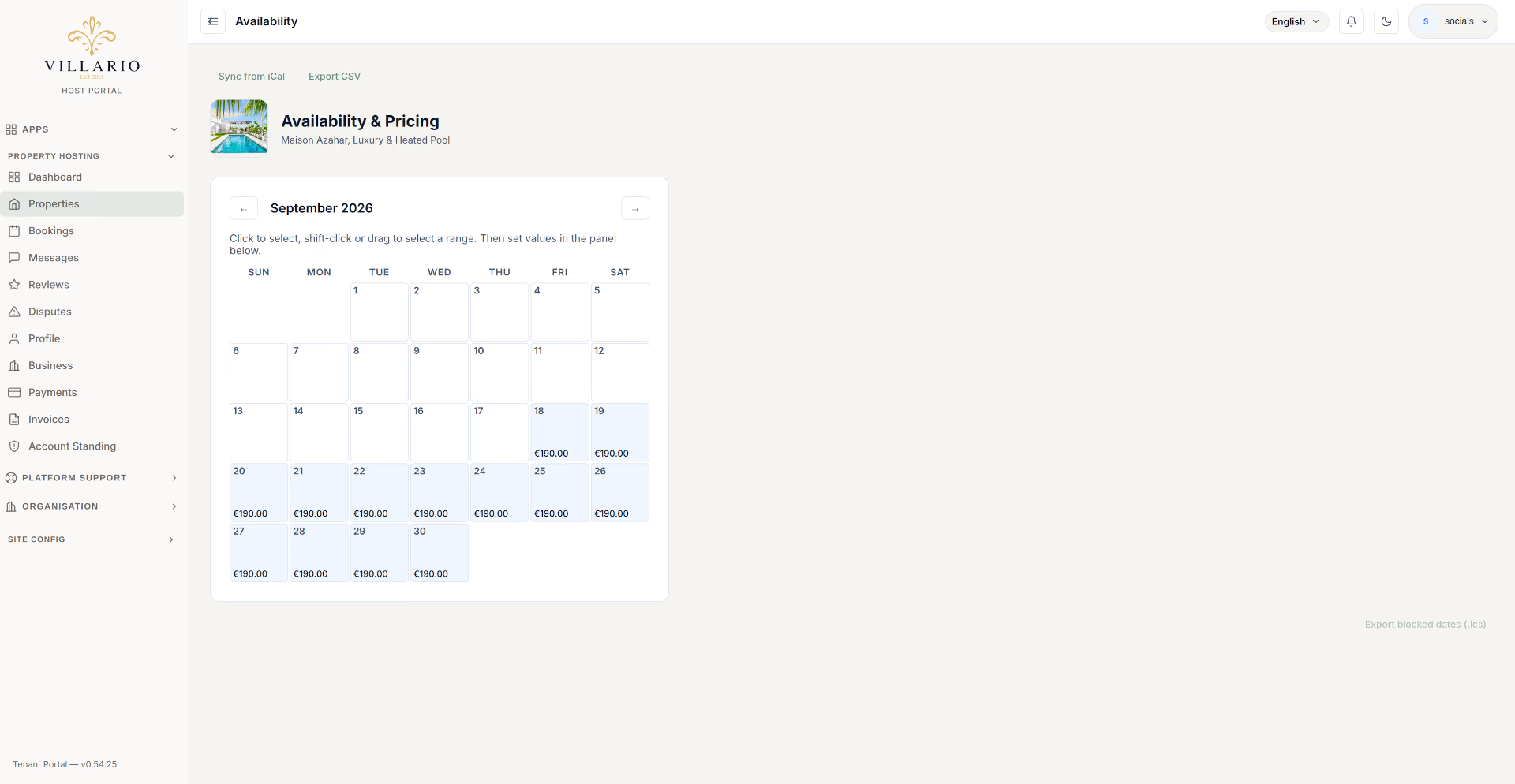
Each room type (or the whole property, in Whole Property mode) has a per‑date calendar. Leave a date untouched and it's available at your base price with all units open; block dates out, or override the price for specific dates (a long weekend, a local event) directly from the calendar.
Pricing, taxes & add‑ons
Pricing rules
Layer automatic adjustments on top of your base price, at the property or a specific room type. Every rule is either a discount or a surcharge: you choose it from one list (grouped as Discounts and Surcharges) and always enter the amount as a positive number, so there is no minus sign to get wrong. A percentage of 20% or more shows a warning so you can check it is what you meant.
A date range at a lower or higher rate (for example a High Season or Event Surcharge).
A different rate on specific days of the week.
Reward bookings over a minimum number of nights.
A discount for booking far enough in advance.
A discount for booking close to check‑in.
Every rule can add or take off a fixed amount or a percentage.
When rules overlap
Rules do not add up on top of each other. For each night:
- Surcharges are applied first. If two surcharges of the same kind cover the same night (two overlapping seasonal windows, say), only the one with the higher priority applies. Surcharges of different kinds do stack, so a High Season Surcharge and a Weekend Surcharge both apply on a Saturday in August.
- Then at most one discount applies: the one that saves your guest the most on that night, worked out on the price after any surcharges. Length‑of‑stay, last‑minute, early‑bird, seasonal and weekend discounts never combine with each other.
- A discount never cancels a surcharge, and a price can never go below zero.
When you save a rule that overlaps another of the same kind, we tell you which one will apply; the rule with the higher priority wins. The guest sees the one discount that applied on their price breakdown.
Add‑ons
Optional extras a guest can add at booking — cleaning fee, early check‑in, airport transfer, whatever's relevant to your property — each with its own price.
Taxes
Configure the local occupancy/VAT tax rules that apply to your property so they're calculated and itemised automatically on every booking, rather than something you have to remember to add.
Cancellation policies
Build a custom policy per property under Property Hosting → Properties → Cancellation Policies, or use one of the built‑in presets (Flexible, Moderate, Strict). A custom policy is a set of refund rules by how many hours before check‑in a guest cancels — the most generous applicable rule wins.
| Hours before check‑in | Example refund |
|---|---|
| 168+ hours (7 days) | 100% |
| Under that, down to 0 | 50% (or whatever you configure) |
Whatever policy is active at the moment of booking is locked into that booking — changing your policy later never retroactively affects a guest who already booked under the old terms.
Three rules sit on top of whichever policy you choose. A guest who cancels within 24 hours of paying, while check‑in is still at least 48 hours away, is refunded in full — this is the change‑of‑mind period, and it starts when the card is charged (for a Request‑to‑Book, when you accept). Fast‑track (last‑minute) bookings never have it: your standard policy applies from the moment the guest pays, and guests are told this at checkout. And if you cancel a booking, or decline a request, the guest is always refunded in full, deposit included, whatever your policy says. Each booking's page shows where it is in this window.
Dashboard
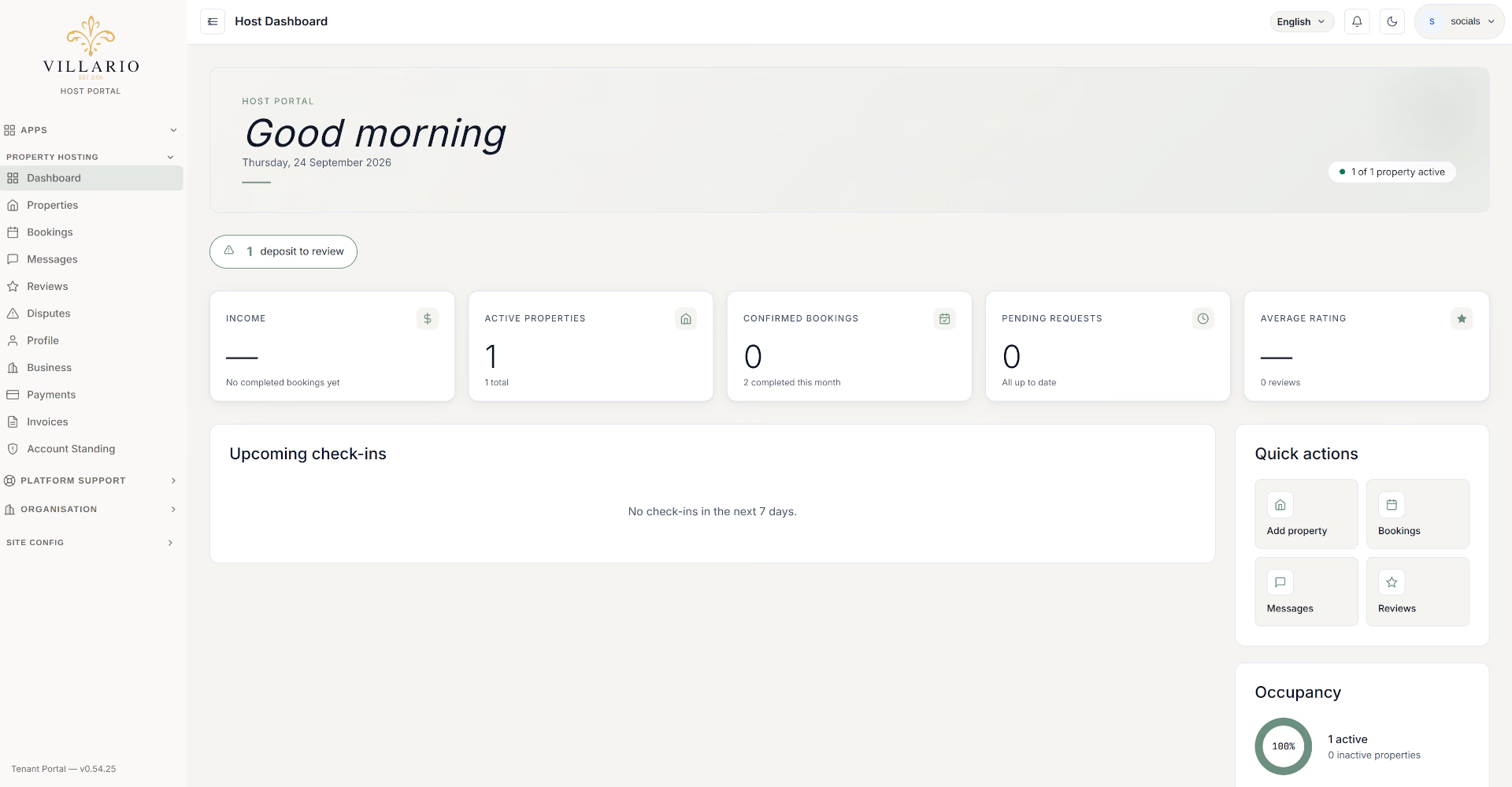
Your landing page after logging in — a snapshot of upcoming check‑ins/check‑outs, pending booking requests awaiting your response, unread messages, and recent activity across every property you manage.
Bookings
Every reservation across every property, filterable by status. Open one to see the full guest, stay, and payment detail, confirm or deny a pending Request‑to‑Book, or cancel where your policy allows it.
A Request‑to‑Book booking with no response from you shows clearly on the list — remember your response deadline (24, 48 or 72 hours, set on your profile, or per property in its Policies step) still applies even if you're not actively watching the dashboard. With no deadline set there is no automatic outcome: the guest simply waits until you respond.
Messages
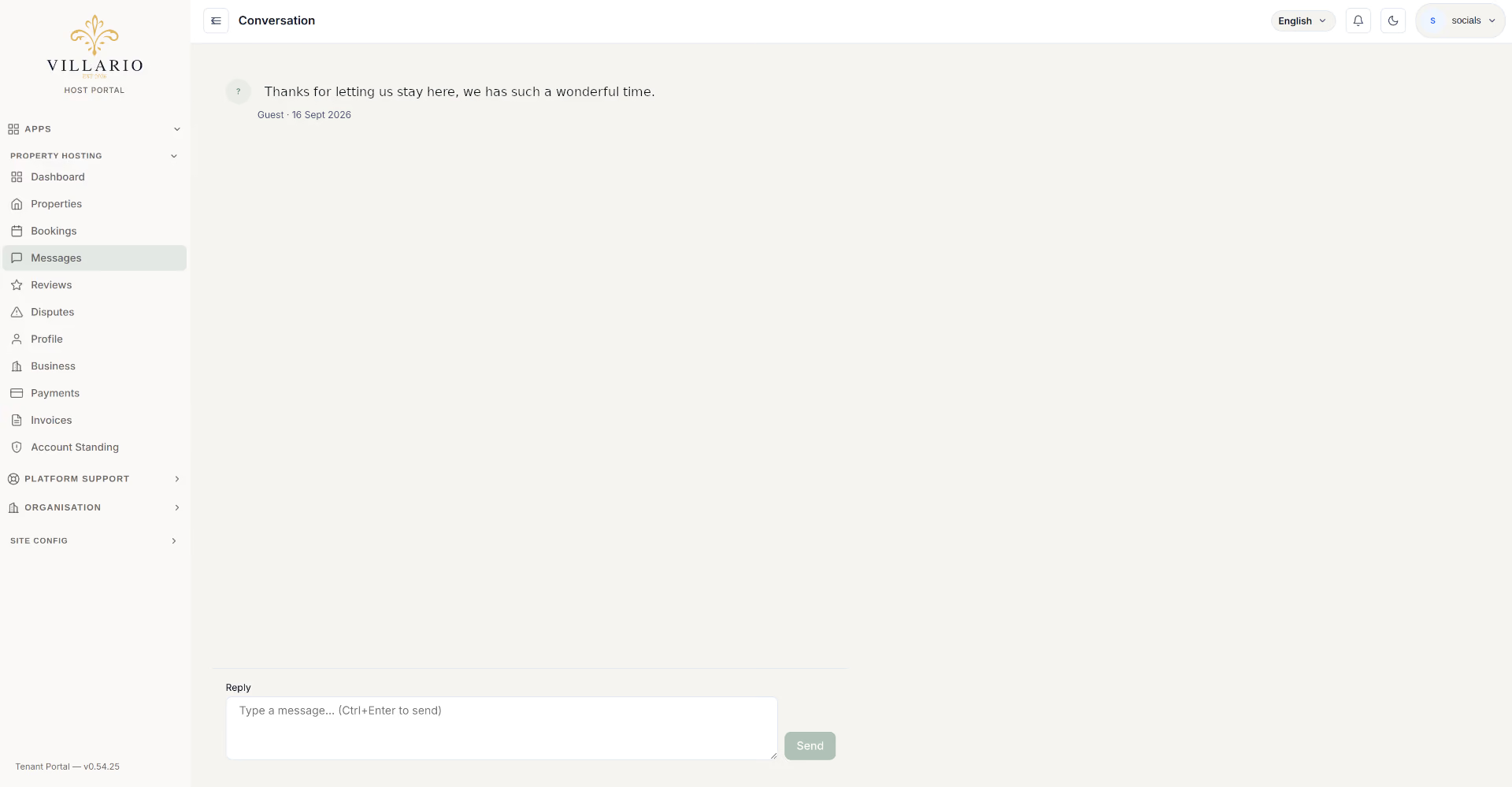
One conversation thread per booking with your guest, from first enquiry through to after checkout. Response rate and response time shown on your public profile are calculated from how quickly you reply here, so treat it as your first line of guest service.
Reviews
See every review left on your properties, with your overall rating shown on your public profile. Post a public response to any review — a level‑headed reply to an unfair one often matters more to future guests than the review itself.
Disputes
If something goes wrong with a stay — property condition, a cancellation disagreement, a payment issue — either you or the guest can open a dispute from the booking. Villario mediates:
-
Open & discuss
State what happened (with photos/evidence if useful) and message back and forth with the other party directly in the dispute thread.
-
Escalate
Either party can escalate to the Villario team at any point, and it escalates automatically if the thread goes quiet for 48 hours.
-
Resolution
Once escalated, Villario reviews the evidence and issues a binding resolution — a refund, a damage‑deposit claim, or another outcome — and both parties are notified.
A dispute can only be opened within a window around the stay dates (through 14 days after checkout), so it can't resurface indefinitely.
Guest identity & check‑in codes
Verified guests
Before sending some booking requests to you, Villario may ask the guest to verify their identity with Stripe (when a request shows signs of risk, or when you have chosen to accept only verified guests for a property). A request held for that check is not shown to you until the guest passes; if they don't, it is cancelled and you aren't told why. If the guest has a current verification you'll see a "Verified guest" label on the booking. You never see their ID, selfie or the details of the check.
Guest registration required by your country
Some countries require hosts to register their guests or keep a guest register. That duty is yours, not Villario's: Villario does not collect ID for you or send it to you. Where your country requires it, collect the details directly from your guests at or before check‑in and keep them as the law requires, outside the platform. Where we have it, a confirmed booking shows a short summary of what your country usually requires (who, what, where and by when) as a courtesy; it may be incomplete or out of date, so check the rules that apply to you.
Hosting in the United Kingdom: your own guest register
Villario does not collect guest ID for you, in the UK or anywhere else. The Immigration (Hotel Records) Order 1972 applies to any UK premises, furnished or unfurnished, where sleeping accommodation is provided for reward, which includes most short‑term lets. It puts a duty on you, not on Villario:
- Every guest aged 16 or over: require their full name and nationality on arrival.
- Guests who are not British, Irish or Commonwealth citizens: also record the number and place of issue of their passport (or other identity document) on arrival, and their next destination (and address, if known) on or before departure.
- Keep the record of the arrival date and these details for at least 12 months, ready for inspection by the police.
Villario will not do this for you, so collect the details directly from your guests at or before check‑in and keep them yourself, outside the platform.
Check‑in codes
If your property uses a smart lock or keypad, generate a door code per booking from the booking detail page and revoke it any time — your guest sees their active code from their own trip page.
Damage deposits
Set an optional refundable damage deposit per room type (or for the whole property, in Whole Property mode). It's charged upfront as part of the guest's single booking payment — not a separate hold — and shown as its own line on their receipt.
- Released automatically a set number of days after checkout if nothing's wrong (14 days by default, configurable per property).
- You can release it early yourself, straight from the booking, if you're satisfied sooner.
- If there's damage, open a dispute before the auto‑release date — Villario mediates a partial or full claim.
Property managers & team access
Delegate day‑to‑day running of a property to someone else — a co‑host, a cleaner who also handles messaging, a full‑time manager — without handing over your login. Add them from the property's Managers step and grant exactly the permissions they need:
| Permission | Lets them… |
|---|---|
| Manage rooms | Add, edit and deactivate room types |
| Manage availability | Open or block dates and adjust unit counts on the calendar (not the price shown on them) |
| Manage bookings | Confirm or deny booking requests |
| Manage reviews | Post or update review responses |
| Manage messages | Send and receive guest messages — can also be designated as the guest‑facing "displayed host" |
| Manage pricing | Update the nightly price, currency and damage deposit (property or a specific room type), plus per‑date price overrides on the calendar — including bulk CSV import |
| Manage photos | Upload, reorder and delete the property's own photo gallery (a room type's photos fall under Manage rooms instead) |
A manager with no permissions granted still has read‑only visibility. You (the owner) always keep full control regardless of what's delegated.
Pricing rules, Add‑ons and Taxes are owner‑only for now — no manager permission currently grants access to those three steps, regardless of what's checked above.
Companies & multi‑property
Running more than one property — or operating under a registered business rather than as an individual? Create a Company profile (trading name, legal name, registration/VAT number, business address) and assign properties to it, so listings can be grouped under a brand.
If your account belongs to a Villario organisation and you're its owner, a Business page appears with an org‑wide action to suspend or reactivate every listing at once — useful if you need to pause everything temporarily (a renovation, an off‑season closure) without archiving each property individually.
Channel manager & calendar sync
Still listed on Airbnb, Booking.com, Vrbo or Expedia? Connect them from a property's Channels screen to push blocked dates and rates outward, or pull availability in via a plain iCal feed.
Villario also publishes its own iCal feed per property (optionally per room type) so any external calendar tool can subscribe and stay in sync — this is what actually prevents double‑bookings across platforms.
PMS connections
Already running a property‑management system? Connect it from a property's PMS screen (Mews, Cloudbeds, Opera, protel, or Apaleo) and choose, independently, whether to sync bookings out, pull rates in, and pull availability blocks in — a master switch turns the whole connection on or off.
Invoices & earnings
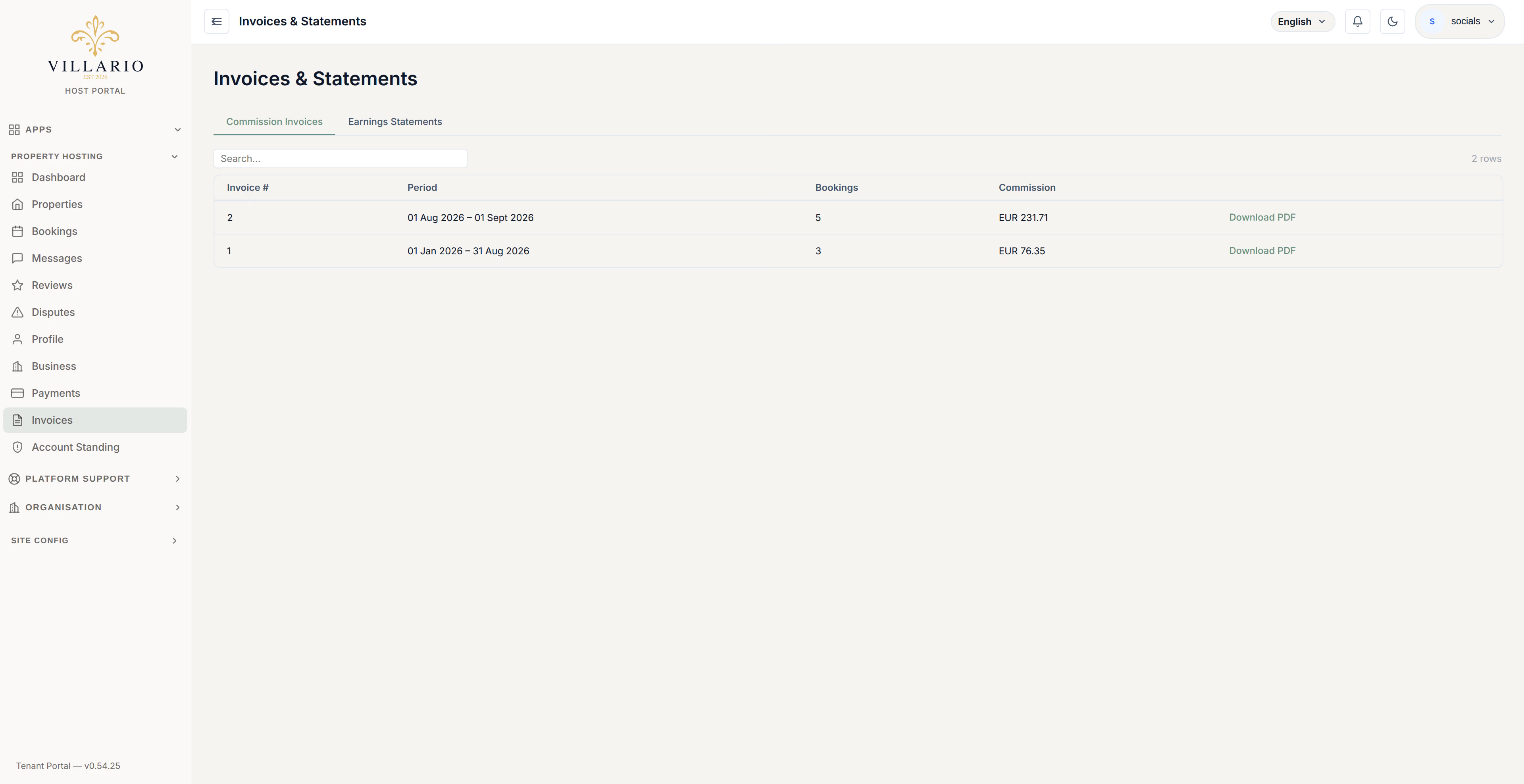
Property Hosting → Invoices is where your generated financial documents live, across two tabs:
What Villario charged you in commission over the period.
Your payouts, with commission and the card‑processing fee (both deducted from your payout) itemised separately — read‑only, generated on a schedule.
Frequently asked questions
Is Instant Book available?
Not at the moment — every booking is a Request to Book, which gives you a review window (your response deadline) before a booking is confirmed. If you'd rather accept short‑notice requests without having to review them in time, you can allow fast‑track bookings in the Policies step: you choose how close to check‑in they're accepted (within 24, 48 or 72 hours), and they're confirmed automatically if you haven't responded after 1 or 2 hours.
Can guests see the card‑processing fee I'm charged?
No. It's deducted from your own payout and itemised on your earnings statement only — the guest's checkout total never changes because of it.
What happens if I don't respond to a Request‑to‑Book in time?
The booking resolves automatically to whichever outcome you set — confirm or deny — once your response deadline passes. That's the deadline and outcome for the property in question: the one in its Policies step if you've set one there, otherwise your profile default. If no deadline applies there is no automatic outcome: the request waits until you respond.
I list on Airbnb and Booking.com already — will guests double‑book me?
Not if you connect those channels (or at minimum subscribe to Villario's iCal feed from your other platforms) under a property's Channels screen — see Channel manager & calendar sync.
Who can see a guest's submitted ID document?
You only ever see name, date of birth and nationality, and only up to a set number of days after checkout. Full documents and scans are restricted to platform administrators for legal/regulatory purposes.
Can I run more than one property under one account?
Yes — list as many as you like, optionally grouped under a Company, and optionally with delegated Property Managers on each one. See Companies & multi‑property.
Getting support
Stuck on something this handbook doesn't cover? Reach out to the Villario team from the support option in your portal, or via hosts@villario.co.uk. For anything involving a specific guest or booking, opening a dispute (if it's a stay‑related disagreement) gets you a faster, better‑tracked resolution than email alone.